
Bulk Background Remover for Up to 10 Images
Add up to 10 images, sign in with Google, then start removal. Review your results and download a ZIP for free.
- Up to 10 images per batch
- Retry only the ones that fail
- Files expire after 24 hours
Drop up to 10 images hereRemove backgrounds in bulk
Select several files at once with Shift or Ctrl/⌘
JPG, PNG or WebP · up to 10 MB, 25 MP each · 10 per batch
Want to see it first?
Just one image? Use the single-image editor →
0 of 0 ready
Review your images, then start background removal.
Click Edit on a ready image to refine its edges — the rest of the batch keeps its results. Results expire after 24 hours.
How a batch looks
Every image gets its own status.
Waiting, uploading, processing, ready or failed — and a failed image never blocks the rest.
In line. You can cancel it before it starts.
Sending this image to process it.
Removing the background. Can't be stopped midway.
Done. Edit it, download it, or keep going.
Shows why. Retry just this one.
Skipped. Not included in the ZIP.
See the details. Compare the results.
Original images and actual, unedited EasyRemoveBG output.
AI-generated originals. Actual EasyRemoveBG results.
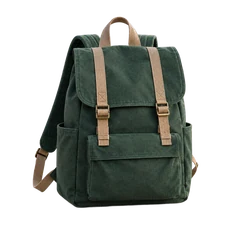
 BeforeAfter
 BeforeAfter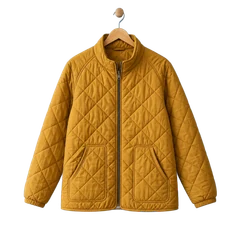
 BeforeAfter
How it works
How to use the bulk background remover
- 1
Add images
Choose or drop up to 10 JPG, PNG or WebP files.
- 2
Start and review
Sign in with Google, then click Remove backgrounds when your batch is ready. Review each result and refine any image that needs it.
- 3
Download ZIP
Get every ready image as a PNG in one ZIP file, named after the originals.
Good to know
What to expect from a batch
Partial results are normal
If 1 of 10 fails, download the 9 ready images as a ZIP. Retry only the failed image; completed images are not processed again.
Edits are per image
Editing one image doesn't change the others. Changing the background for all will ask before replacing individual choices.
Uploads first, cloud processing next
Keep this tab open until every image is uploaded. Submitted images keep processing in the cloud; return in the same browser within 24 hours to see the results.
FAQ
Questions, answered plainly
Answers about formats, cloud processing and downloads.
How many images can I add at once?
Up to 10 per batch, each up to 10 MB and 25 MP. Start a new batch when this one is done.
What happens if some images fail?
They're marked Failed with a reason. Retry them individually or all at once — images that already worked are not processed again.
What's inside the ZIP?
One PNG per ready image, named after the original with “-removed.png”. Duplicate names get a number. Failed, canceled or unfinished images are left out, so check the ready count before downloading.
Can I edit one image from the batch?
Yes. Click Edit on a ready image to erase or restore edges, then go back to the queue. The rest of the batch keeps its results.
Can I stop a batch?
You can cancel images that are still waiting. An image that's already processing will finish first.
What happens to my images?
To remove the background, your image is uploaded over an encrypted connection and processed in the cloud. The uploaded image and the result expire 24 hours after upload. Expired files are permanently deleted during daily cleanup, normally within the following 24 hours.
Is it really free? Do I need an account?
Yes, bulk background removal and ZIP downloads are free. Sign in with Google to process a batch. You can use the single-image remover without an account.